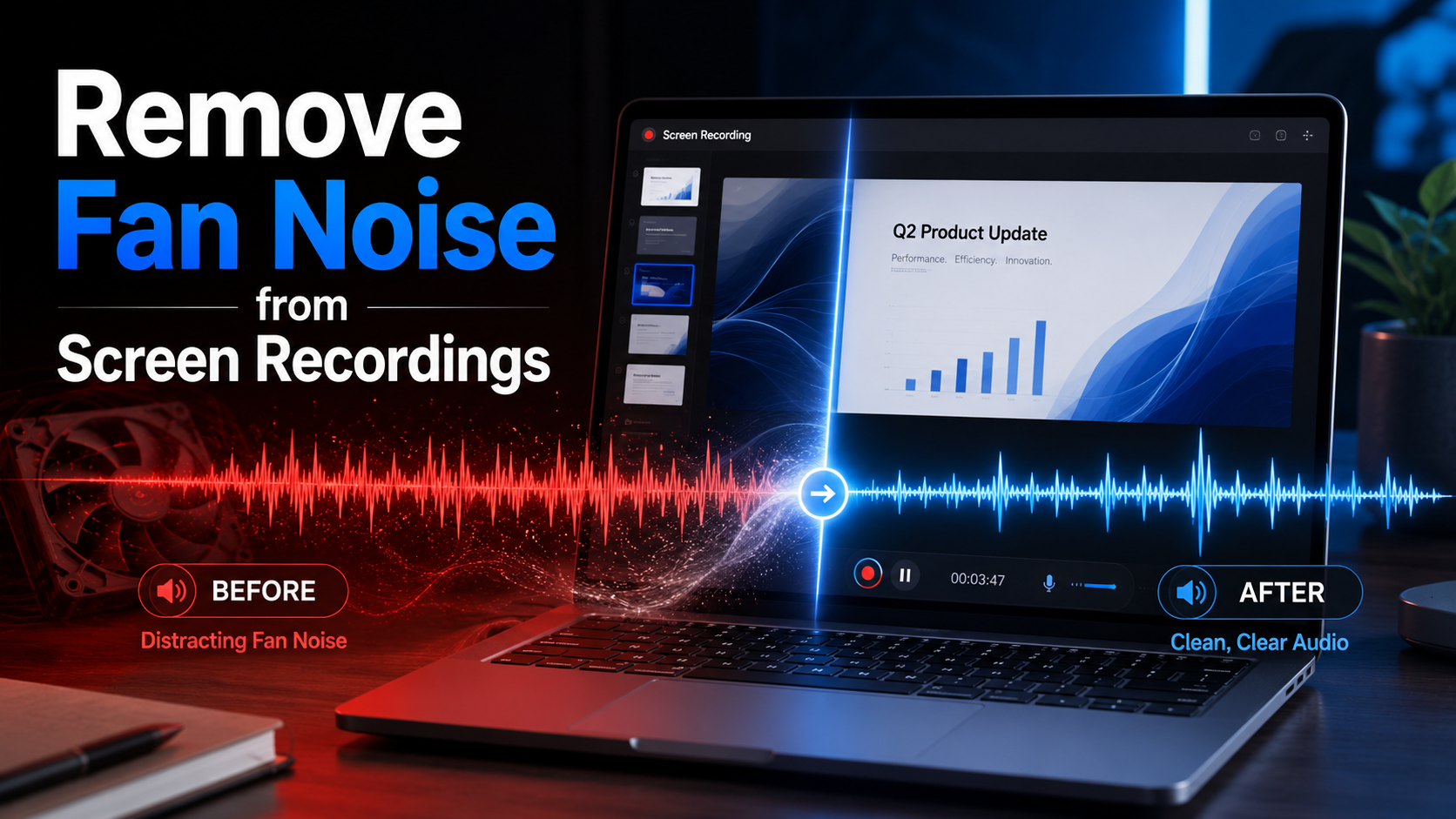
Fan noise can ruin an otherwise useful screen recording. Your presentation may be clear, your software demonstration may be perfectly organised and your microphone may be positioned correctly, yet a constant mechanical hum can still sit beneath every word. This commonly happens when a laptop becomes hot while recording the screen, running presentation software, editing video or handling several demanding applications at once. Desktop computers can cause the same problem when their cooling fans become louder under load. Fortunately, you can remove fan noise from screen recordings without rebuilding the entire project or recording your narration again. Video Voice Cleaner provides a quick way to reduce unwanted background sound while keeping the spoken explanation at the centre of the recording.
Why Computer Fan Noise Appears in Screen Recordings
Computer fans become louder when a processor or graphics chip generates more heat. Screen recording itself can increase the workload because the computer must capture, compress and save video while continuing to run the software being demonstrated. A quiet laptop may therefore become noticeably louder several minutes after the recording begins. The built-in microphone can make the problem worse because it is usually positioned close to the cooling system. Even an external microphone may capture the noise when it is placed on the same desk as the computer. The result is a continuous whirring, humming or rushing sound beneath the narration.
This type of background noise is particularly distracting because it rarely stops. A passing car or closing door may interrupt a recording for only a moment, but fan noise can continue through the entire video. Viewers may tolerate it briefly, yet it quickly becomes tiring during a long tutorial, training video or presentation. It can also make the recording seem less professional, even when the information itself is excellent. Increasing the voice volume rarely solves the problem because it raises the fan sound at the same time. The most effective solution is to reduce the unwanted noise while preserving the speech.
Remove Fan Noise from Screen Recordings in Your Browser
Video Voice Cleaner is designed to make this process straightforward. You upload your screen recording, allow the browser to process the audio and then export the improved version. There is no need to install a traditional audio editor or manually separate the soundtrack from the video. You do not need to identify a section containing only fan noise or create a technical noise profile. The process is intended for people who need cleaner speech without becoming audio engineers. This makes it suitable for teachers, YouTubers, software developers, trainers, gamers and anyone producing spoken screen content.
The processing takes place through the web application rather than through a complicated editing timeline. This is useful when the video itself is already complete and only the sound needs attention. You can keep the original visuals, cuts, transitions and screen movements exactly as they are. The application concentrates on reducing background noise and improving the intelligibility of the spoken voice. Once processing is complete, you can compare the result with the original before deciding whether to use it. That comparison is important because no two recordings contain exactly the same combination of voice, microphone and background sound.
How to Clean a Screen Recording with Fan Noise
Start by opening Video Voice Cleaner in a supported browser. Upload the screen recording that contains the unwanted computer fan sound, then wait while the application prepares the file for processing. Choose the available cleaning settings and begin the noise-reduction process. When the result is ready, listen carefully to a section containing both speech and obvious fan noise. Compare it with the original recording to check that the background hum has been reduced without making the voice sound unnatural. When you are satisfied with the result, export the cleaned recording.
Headphones are useful during the comparison because quiet mechanical noise can be difficult to judge through laptop speakers. Listen to consonants, breaths and the ends of sentences, as these areas often reveal whether processing has become too aggressive. The goal is not necessarily to produce absolute digital silence between every word. A small amount of natural room sound can be less distracting than harsh processing artefacts. What matters is that the fan no longer competes with the speaker for the listener’s attention. A successful result should feel easier to hear without drawing attention to the cleaning process itself.
Why Fan Noise Can Be Difficult to Remove
Fan noise may sound simple, but it often contains several layers. A computer fan can produce a low mechanical hum, a higher rushing sound and changing tones as its speed rises or falls. The noise may also reflect from the desk, wall or laptop screen before reaching the microphone. This means it is not always a single, perfectly consistent frequency that can be removed with one filter. The speaker’s voice may overlap some of the same frequencies, particularly in the lower and middle ranges. Removing too much can therefore make the narration sound thin, metallic or artificially processed.
A cleaner cannot restore information that the microphone never captured properly. If the voice is extremely quiet and the fan is much louder, some damage may remain after processing. Heavy clipping, severe distortion or a microphone rubbing against a surface can create additional problems that are not technically fan noise. The best results usually come from recordings in which the voice is understandable but spoiled by a steady background sound. Noise reduction can then separate the important speech from the less important mechanical noise more effectively. This is why it is worth recording a short test before beginning a lengthy tutorial.
Prevent Laptop Fan Noise Before Recording
Reducing the noise before recording can improve the final result considerably. Close unnecessary browser tabs, games, editing tools and background applications so the computer does not work harder than required. Allow the laptop to cool before starting, particularly if it has recently been charging, updating or rendering video. Place it on a hard surface rather than a bed, cushion or soft fabric that may block the air vents. Clean visible vents carefully and make sure there is enough space for warm air to escape. These simple changes can prevent the fan from reaching its highest speed.
Microphone position also matters. Move an external microphone away from the computer and place it closer to your mouth whenever possible. Avoid putting the microphone directly behind a laptop exhaust vent or on the same vibrating surface as a desktop computer. A folded cloth or suitable microphone stand can reduce vibrations travelling through the desk, although it should never block the computer’s ventilation. Directional microphones may reject some sound coming from behind or beside them. Even a modest improvement at the recording stage gives the cleaning software better material to work with.
Built-In Microphones and Screen Recording Audio
Built-in laptop microphones are convenient, but they are rarely placed with fan rejection in mind. The microphone may be only a short distance from the cooling system, keyboard and internal components. It can also capture typing, trackpad clicks and vibrations travelling through the laptop casing. During a processor-intensive screen recording, these sounds can combine into a surprisingly noisy soundtrack. The microphone’s automatic gain control may increase the problem by raising the recording level during pauses. This makes quiet fan noise more noticeable between sentences.
An inexpensive headset microphone can provide a significant improvement because it remains close to the speaker’s mouth. A USB microphone can also work well, provided it is positioned away from the computer and used at a sensible input level. However, buying new equipment is not always practical, especially when the recording has already been completed. Video Voice Cleaner gives you a way to improve existing material rather than immediately starting again. It can also help when you must use the equipment already available in a classroom, office, hotel room or temporary workspace. The most important requirement is that the original speech remains reasonably clear.
Fan Noise in Tutorials, Gaming Videos and Presentations
Software tutorials are particularly vulnerable to fan noise because they often require several demanding programs to run simultaneously. A creator may be recording the screen, running editing software, opening large project files and narrating through the same computer. Gaming videos place even greater pressure on the graphics processor, which can cause fans to accelerate dramatically. Business presentations and webinars can suffer when video conferencing software, slide decks and browser tabs are all active at once. Teachers may encounter the same problem while recording lessons with screen-sharing tools. In each case, the unwanted noise is caused by the computer working hardest at the exact moment clean audio matters most.
The problem is not limited to powerful gaming machines. Thin laptops often use small fans that must spin quickly to move enough air through a compact case. Older computers may become noisy because dust has accumulated inside the vents or the cooling system is no longer operating efficiently. A new laptop may also become loud during updates, indexing or background synchronisation. This makes fan noise unpredictable and difficult to eliminate through preparation alone. Being able to clean the completed recording provides a useful safety net.
Do You Need to Extract the Audio First?
Traditional workflows often require the user to export the audio track, edit it in a separate program and then synchronise it with the video again. That process can work, but it adds several opportunities for mistakes. The audio may become misaligned, the wrong export settings may be selected or the final video may lose quality during repeated rendering. It also creates extra files that must be named, stored and managed. For someone who only wants to remove fan noise from a screen recording, the workflow can feel disproportionate to the problem. A browser-based tool avoids much of that unnecessary handling.
Video Voice Cleaner is built around the original audio or video file. You do not need to understand waveforms, spectral displays, compression ratios or advanced filtering controls. The aim is to make speech cleaning accessible without hiding the importance of listening to the finished result. Automated processing is useful, but the user should still make the final judgement. A recording intended for YouTube may need a different balance from a private meeting or classroom resource. The comparison stage allows you to decide whether the processed version suits its intended audience.
Can Fan Noise Be Completely Removed?
Complete removal depends on the quality of the original recording. A steady fan sound beneath a strong, close voice is often easier to reduce than a loud fan masking distant speech. Changing fan speeds can also be more difficult because the frequency and volume continue shifting. Room echo may cause the fan sound to spread across the recording rather than remaining in one clear layer. Noise reduction can still produce a substantial improvement, but it cannot guarantee perfect restoration in every case. The best standard is whether the cleaned version is noticeably more comfortable and intelligible for the listener.
It is also worth considering the destination of the recording. A tutorial watched through phone speakers may not reveal low-frequency fan noise as clearly as a video heard through headphones. A podcast-style presentation places far more attention on the voice and therefore requires stricter audio quality. Social media clips may be short enough that minor background noise is tolerable, while a forty-minute training video needs much cleaner sound. The appropriate amount of processing depends on how the material will be consumed. Preserving a natural voice should remain more important than forcing every pause into total silence.
Remove Fan Noise Without Recording Everything Again
Discovering fan noise after finishing a long screen recording can be demoralising. Repeating the entire performance may mean recreating mouse movements, application states, examples and spoken explanations. The second attempt may introduce new mistakes or produce a less natural delivery. Cleaning the existing file allows you to preserve the parts that already work. It can turn an unusable recording into something suitable for publication, training or internal communication. This is particularly valuable when the original demonstration captured a process that cannot easily be repeated.
Video Voice Cleaner is intended to shorten the gap between identifying the problem and producing a usable result. Upload the file, reduce the unwanted background sound, compare the output and export the improved recording. The application does not require a complex editing project or specialist technical knowledge. It can be used for one short clip or as part of a regular screen-recording workflow. Most importantly, it allows the information in the video to remain the focus. The viewer hears the explanation rather than the computer struggling to keep itself cool.
Try Video Voice Cleaner
You can test Video Voice Cleaner with a screen recording that contains fan noise, room hum or another consistent background sound. Begin with a short sample so you can assess how the processing handles your microphone and voice. Listen to the original and cleaned versions through headphones before processing a longer project. Keep the original file safely stored so you always have an untouched copy. Adjust the available options carefully rather than assuming the strongest processing will always produce the best sound. A balanced result should reduce distraction while retaining the character and clarity of the speaker.
Fan noise does not need to make a useful recording unpublishable. Modern noise reduction can often rescue tutorials, presentations and demonstrations that would otherwise require a complete second take. Prevention remains valuable, but even careful creators cannot always predict when a cooling fan will suddenly become loud. Video Voice Cleaner provides a practical way to address the problem after recording. The process is fast enough for everyday use and simple enough for people who do not normally edit audio. Your viewers can then concentrate on what you are saying rather than what your computer is doing.