
Improve noisy audio and video recordings with practical, step-by-step guidance. These guides explain how to reduce common background sounds, protect speech quality and avoid the mistakes that can make processed audio sound artificial.
Choose the problem that matches your recording.
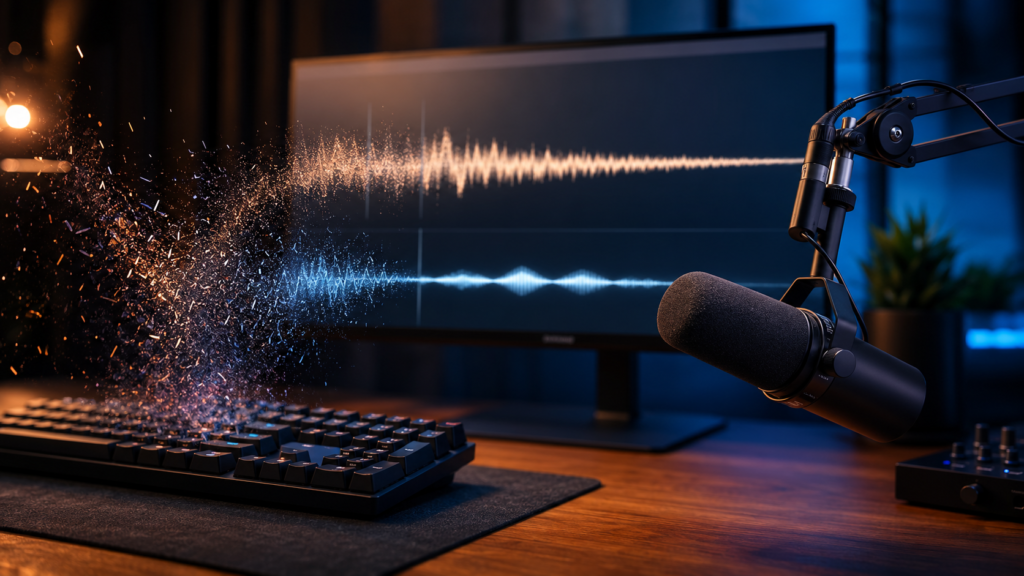
Remove Keyboard Noise From Audio and Video
Keyboard clicks can overwhelm screen recordings, tutorials, gaming commentary and voiceovers. This guide explains why typing noise is difficult to remove, how microphone placement affects the result and which editing methods work best.

Remove Fan Noise From Screen Recordings
Laptop fans, desktop cooling systems and room fans can create a constant background sound beneath speech. Learn how to reduce fan noise while keeping spoken words clear and natural.

Remove Traffic Noise From Video
Road noise can quickly ruin outdoor recordings, interviews and phone videos. This guide covers practical recording techniques and post-production options for reducing engines, tyre noise and passing vehicles.

Remove Wind Noise From Video
Wind can overload a microphone and create heavy rumbling that masks speech. Learn how to prevent wind noise during recording and improve footage that has already been captured.

Remove People Talking in the Background
Background conversations are harder to remove than steady sounds because they contain speech-like frequencies. This guide explains what can realistically be reduced and how to keep the main speaker understandable.
Read the background voices guide
Better Results Start With Better Recordings
Audio cleanup works best when the main voice is clear, close to the microphone and louder than the surrounding noise. Before recording, move the microphone closer, reduce unnecessary gain and keep it away from vibrating surfaces. Record a short test before starting a longer session, then check the result through headphones.
When a recording has already been made, begin with the least aggressive processing. Stronger settings may remove more noise, but they can also damage consonants and make the voice sound metallic or unnatural. A successful result is not always complete silence. It is a recording in which the listener can focus on the speaker without being distracted by the background sound.
Clean Up Your Recording
Video Voice Cleaner is designed for spoken audio and video where the voice matters most. Add your recording, compare the original with the processed version and check several difficult sections before exporting.