Video Voice Cleaner

Tag: clean video audio

  • Why Video Voice Cleaner Runs Locally in Your Browser

    Why Video Voice Cleaner Runs Locally in Your Browser

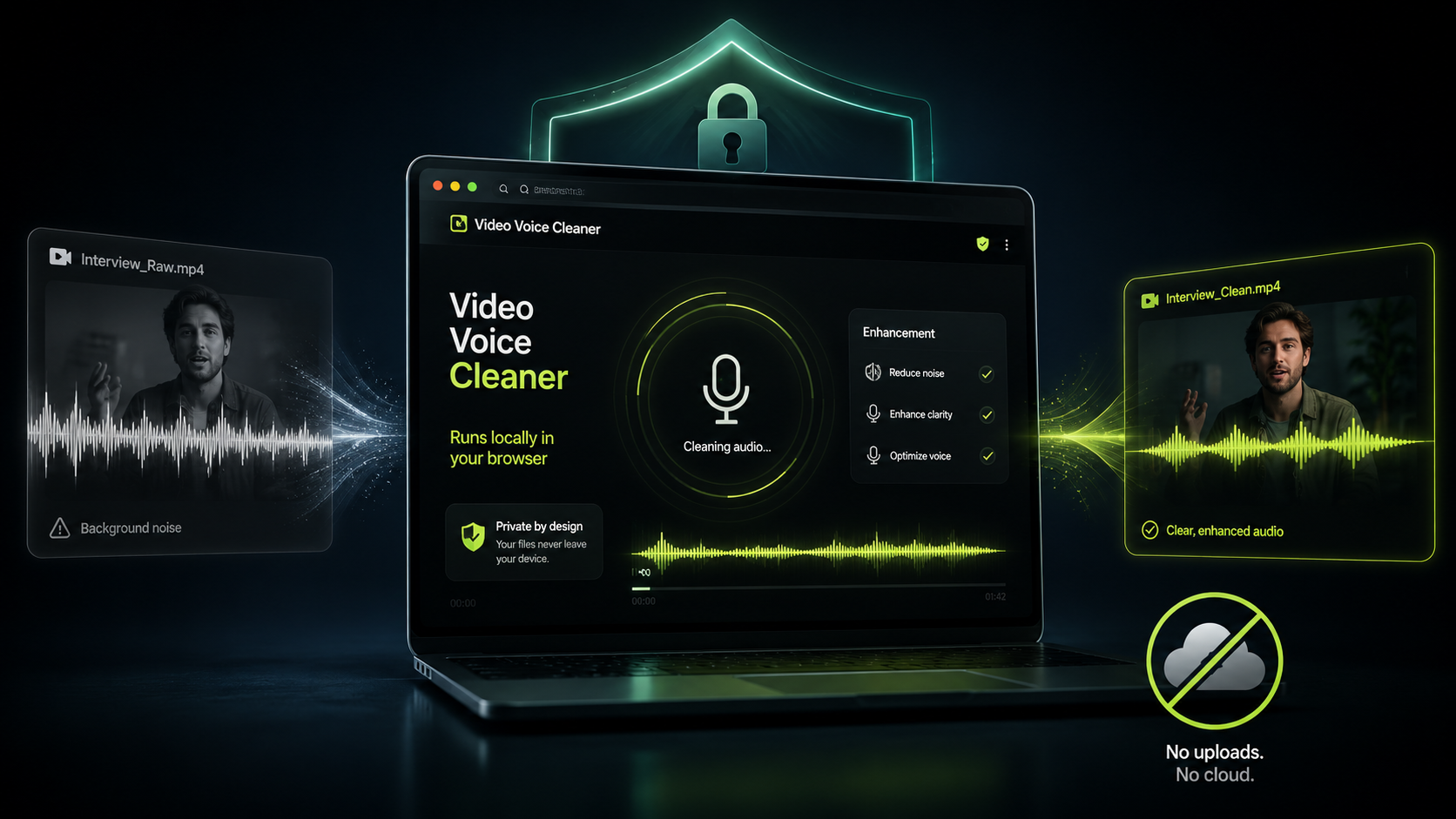
    Video Voice Cleaner uses local browser audio processing to clean speech without sending your recording to a remote server. When you select a video or audio file, the processing takes place on your own computer, tablet or phone. Your recording remains on your device throughout the cleaning process. This privacy-first approach is particularly useful for interviews, family recordings, work presentations, client material and other files that you may not want stored online. It also removes the need to wait while a large video uploads before processing can begin. Video Voice Cleaner turns the browser into the audio-processing environment rather than treating it as a gateway to somebody else’s computer.

    What Local Browser Audio Processing Means

    Many online audio-cleaning services follow a cloud-based workflow. You upload a file, the company processes it on its servers, and you download the finished version when the work is complete. Video Voice Cleaner follows a different model because the audio-cleaning software is loaded directly into your browser. Once the application has loaded, your device performs the demanding calculations needed to identify speech and reduce unwanted noise. The original file is not transferred to Video Voice Cleaner for analysis or storage. This means the word “upload” would be misleading, even though selecting a file may feel similar to uploading one on another website.

    The difference matters because a video file can contain much more than its visible subject. Recordings may capture private conversations, confidential business information, children, personal surroundings or location details. Uploading such material to an external service requires a degree of trust in its storage policies, security arrangements and deletion procedures. Local processing reduces that concern because the file stays under your control. Video Voice Cleaner does not need to store your original recording or maintain a library of processed files. When the browser session ends, there is no remote copy waiting on a Video Voice Cleaner server.

    How Video Voice Cleaner Works Inside the Browser

    Modern web browsers can perform tasks that would once have required conventional desktop software. Video Voice Cleaner uses WebAssembly to run high-performance audio-processing code within the browser environment. WebAssembly allows complex software to operate efficiently across different operating systems without requiring a traditional installation package. The application extracts the audio track from your recording, processes the sound, and then creates a new downloadable file. All of these stages take place on the device you are already using. The browser provides the interface, file access and processing environment needed to complete the job.

    The underlying speech-cleaning system is designed to distinguish spoken voice from competing background sound. It can reduce persistent noise such as traffic, wind, fans, room ambience and general environmental interference. The system is not simply lowering the volume whenever speech stops because that would leave noise mixed into every spoken word. Instead, it analyses the sound and attempts to preserve intelligibility while reducing elements that do not belong to the voice. This is a computationally demanding process, particularly when the original recording is long or has a high resolution. Running that workload locally gives users privacy, but it also means performance depends on the hardware available.

    Why Processing Speed Varies Between Devices

    A powerful desktop computer will usually process a recording more quickly than an older laptop, budget phone or tablet. The browser must use the processor and memory available on the device, rather than borrowing computing power from a remote data centre. Longer recordings naturally require more work because every section of the audio must be analysed and reconstructed. High-resolution video files can also take longer to prepare and export, even though the audio track itself may be relatively small. Other open applications, limited memory and power-saving settings may affect performance as well. These differences are a natural consequence of local browser audio processing rather than evidence that a file has stalled.

    Mobile devices can produce surprisingly strong results, but they face tighter restrictions on memory, temperature and background activity. A phone may slow itself down during a long processing job to prevent overheating or excessive battery consumption. Tablets can behave differently again, particularly when their browsers impose limits on large files. For the most reliable experience, users should keep the browser tab open and avoid switching repeatedly between demanding applications. A stable modern browser and sufficient free storage also help prevent interruptions during export. Video Voice Cleaner will continue to improve its handling of different devices as feedback from real-world testing becomes available.

    Why Results Can Differ Between Browsers

    Chrome, Edge, Firefox and Safari do not all handle audio, video and WebAssembly in exactly the same way. Each browser uses its own media systems, memory rules and implementation of web standards. A recording that processes quickly in desktop Chrome may take longer in Safari on an iPad. Android Chrome may behave differently from the browser supplied by a phone manufacturer. Export formats and codec support can also vary between platforms. These differences are one reason Video Voice Cleaner is being tested across as many devices and browsers as possible before a wider public release.

    Using a current version of Chrome or Edge on a desktop or laptop will usually provide the strongest starting point. That does not mean other browsers are unsupported, but some combinations may encounter limitations with unusually large or complex files. The Known Issues page records problems that have already been identified and provides practical advice where possible. Beta users play an important role because browser compatibility cannot be judged from laboratory testing alone. Real recordings expose unusual codecs, variable frame rates, damaged metadata and other complications. Every useful report helps make the application more dependable for the next person.

    Local Processing Improves Privacy, but It Also Simplifies the Experience

    Privacy is the clearest advantage of keeping recordings on the user’s device, but it is not the only one. Uploading a large video can take longer than processing it, especially on a slow or unstable internet connection. Cloud services may also impose upload limits because storage and data transfer cost money. Video Voice Cleaner does not need to copy an entire recording across the internet before it can begin working. Once the application itself has loaded, the main task is handled locally. This makes the service practical in places where broadband speed is limited but the device itself remains capable.

    Local processing also avoids the awkward question of how long an uploaded file remains on a company’s server. Some services delete files automatically, while others retain them temporarily for technical or commercial reasons. Users may not always read those policies before submitting a sensitive recording. Video Voice Cleaner removes much of that uncertainty by not requesting the recording in the first place. The user chooses the source file, starts the process, reviews the result and saves the cleaned version. The workflow remains visible and under the user’s control from beginning to end.

    What Video Voice Cleaner Can and Cannot Fix

    Audio cleaning can make a major difference, but it cannot recover information that was never captured clearly. If speech is completely masked by a sudden loud sound, no application can recreate every missing word with certainty. Heavy distortion, clipping and severe microphone damage may also limit the quality of the result. Video Voice Cleaner works best when the speaker can still be heard beneath the unwanted noise. Wind, traffic, crowd sound and room ambience are good examples of problems that may be reduced when the original voice remains present. The aim is clearer, more usable speech rather than an artificially perfect studio recording.

    Results should always be judged by listening rather than by assuming stronger processing must be better. Very aggressive noise reduction can make speech sound thin, metallic or unnatural. A balanced result preserves the character of the speaker while reducing distractions around them. Different recordings may therefore benefit from different settings as the application develops. Beta testing helps identify where the current processing works well and where further adjustment is required. Honest limitations are important because useful audio software should improve recordings without making impossible promises.

    Try Video Voice Cleaner in Your Browser

    Video Voice Cleaner was built for people who record useful video in imperfect conditions. A phone can capture excellent pictures while its microphone struggles with wind, traffic, waves, crowds or echo. The application offers a straightforward way to improve that speech without buying specialist editing software or uploading personal footage to a remote service. Select a recording, allow the browser to process it, and compare the cleaned result with the original. The current beta is also an opportunity to report device-specific issues and help shape future versions. Visit the Video Voice Cleaner app to test local browser audio processing on one of your own recordings.

  • How to Tell Whether Audio Cleaning Actually Worked

    How to Tell Whether Audio Cleaning Actually Worked

    Audio cleaning can make a recording sound better, but it can also make it merely sound louder, brighter or more processed. Those are not the same thing. A louder version may seem more impressive during a quick comparison, even when the speech has become harsher or less natural. That is why it helps to test the result carefully rather than trusting your first impression. Video Voice Cleaner includes comparison options that make this easier. The goal is to decide whether the cleaned version is genuinely clearer, more comfortable and more useful than the original.

    Why Loudness Can Mislead You

    Human hearing tends to favour the louder version during a quick comparison. This can make a processed recording seem clearer even when the main difference is simply increased volume. A louder voice may appear more detailed, more confident and easier to understand for the first few seconds. Once the levels are matched, however, harshness, distortion or missing detail may become easier to hear. This is why loudness should never be the only measure of improvement. A fair test compares the original and processed versions at roughly similar listening levels.

    The simplest approach is to lower the volume of whichever version sounds louder before making a judgement. You do not need specialist metering software for a basic comparison. Use the playback controls and adjust the volume until both versions feel reasonably similar in strength. Then listen again for clarity, naturalness and background reduction. This removes much of the psychological advantage created by extra volume. It also makes subtle processing problems easier to identify.

    Use the Built-In Comparison Options

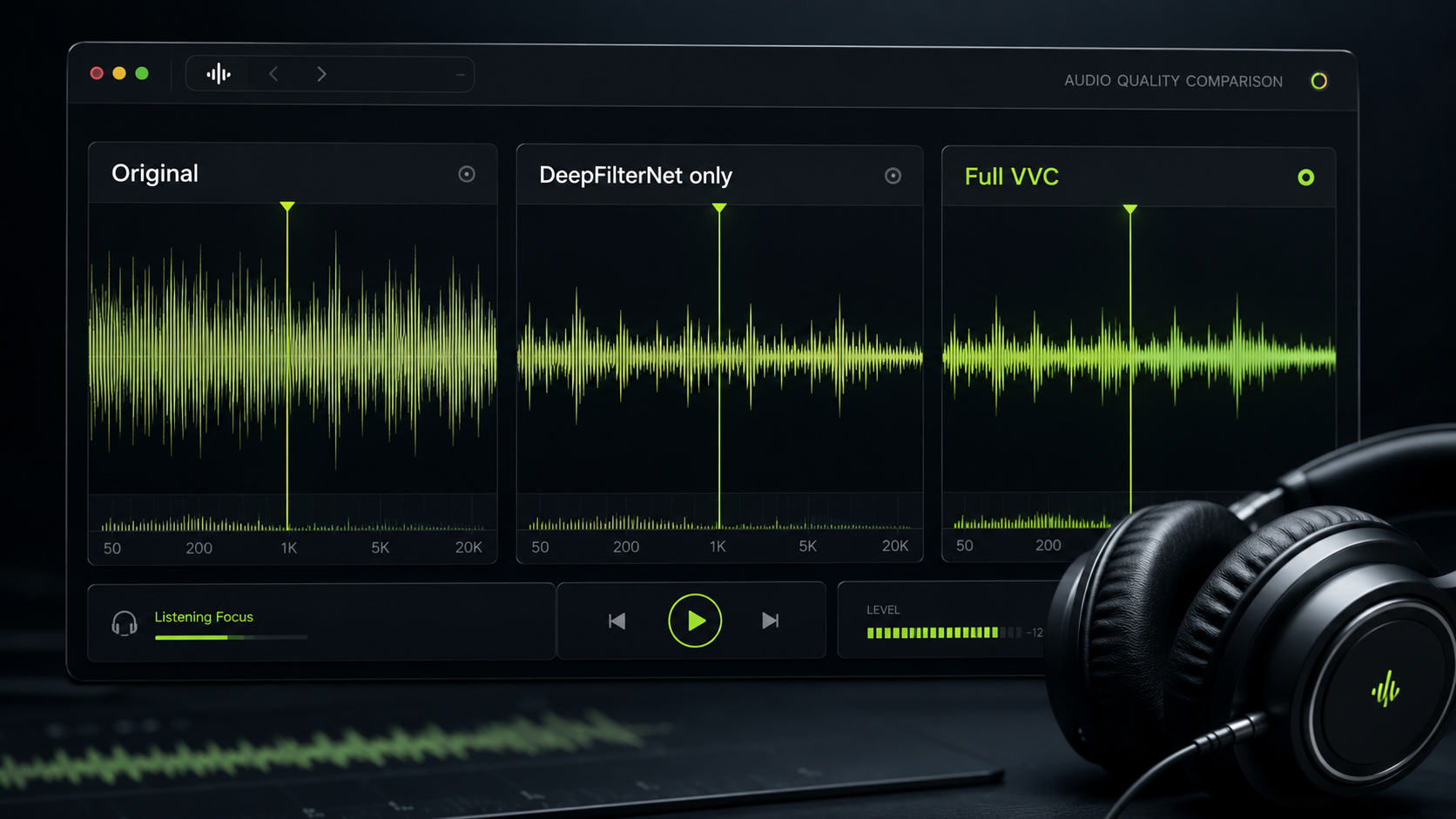
    Video Voice Cleaner provides three versions for comparison. The first is the original recording, which lets you hear the source exactly as it was captured. The second is the DeepFilterNet-only version, which shows the result of the main noise-reduction stage. The third is the full Video Voice Cleaner version, which includes the additional processing used to restore presence and improve overall speech quality. Listening to all three versions helps separate useful improvement from processing that may be too strong. It also gives beta testers a clearer way to explain what worked and what did not.

    The original recording provides the baseline. DeepFilterNet only shows what happens when the main background-noise reduction is applied without the later restoration stage. Full Video Voice Cleaner should usually sound clearer, more controlled and more natural than the original. It should also avoid becoming harsher or thinner than the DeepFilterNet-only result. There may be recordings where the simpler version sounds better, and that is useful information rather than an embarrassment. Different voices, microphones and background conditions can respond differently to the same processing chain.

    What to Listen For

    The most important question is whether the words are easier to understand. Clearer speech should require less effort from the listener, especially when the original contains wind, traffic, echo or room noise. Listen for consonants, endings of words and quiet syllables, because these are often the first parts of speech to be damaged by aggressive processing. Check whether the speaker still sounds recognisable and natural. A successful result should preserve the identity and character of the voice. It should reduce distraction without turning the speaker into a synthetic imitation.

    Background noise should become less intrusive rather than simply disappear at all costs. Wind may become quieter, traffic may move further into the background and room noise may become less tiring. However, the recording should not pulse, pump or change level unnaturally between words. Pay attention to breaths, pauses and the spaces between sentences. If the background repeatedly appears and disappears in an obvious way, the processing may be too aggressive. A strong result usually sounds calmer and more controlled, not strangely empty.

    Warning Signs of Overprocessing

    Metallic speech is one of the clearest signs that the processing has gone too far. The voice may sound thin, brittle or as though it is coming through a poor telephone connection. Another warning sign is a watery or warbling quality around words. This often appears when the software struggles to distinguish speech from background sound. Missing consonants, shortened breaths and softened word endings can also reduce intelligibility. A cleaner recording is not useful if important parts of the voice have been removed with the noise.

    You should also listen for artificial sharpness. Extra brightness can create the impression of clarity, but it may become unpleasant after several minutes. Harsh sounds such as “s”, “t” and “k” may become exaggerated. A processed voice can also feel unnaturally close or detached from the environment. Some background sound is often necessary to make a location recording feel believable. The aim is controlled reduction, not the total destruction of every sound that is not speech.

    Compare Short Sections Repeatedly

    Long comparisons are harder to judge because your ears quickly adapt to whatever you are hearing. A five to ten-second section is usually enough for a useful test. Choose a section that includes speech, a pause and some obvious background noise. Play the same section in the original, DeepFilterNet-only and full Video Voice Cleaner versions. Repeat the comparison several times at similar volume levels. This makes small differences much easier to detect.

    Speech with clear consonants is especially useful for testing. Words containing “s”, “f”, “t” and “k” can reveal whether the processing has removed detail or added harshness. Pauses help you judge how naturally the background behaves when nobody is speaking. A section with both quiet and loud speech can show whether the processing handles changes in volume consistently. Avoid jumping between unrelated parts of the recording during the first comparison. Using the same short passage gives you a much fairer result.

    Test With Headphones and Ordinary Speakers

    Headphones are useful because they reveal distortion, pumping and other processing artefacts more clearly. They allow you to hear small changes that may be hidden by laptop or phone speakers. However, headphones should not be the only test. Many viewers will listen through phones, tablets, televisions or ordinary computer speakers. A recording that sounds excellent through studio headphones may behave differently on smaller speakers. The cleaned version should therefore be tested on more than one playback device.

    Start with headphones to identify obvious faults. Then play the same section through the device most likely to be used by your audience. For a YouTube video, that may be a phone or laptop. For a family recording, it may be a television. For an interview, it may be both headphones and speakers. The best result is not merely technically impressive. It should work in the real listening conditions where the recording will actually be heard.

    When DeepFilterNet Only Sounds Better

    There may be cases where the DeepFilterNet-only result sounds better than the full Video Voice Cleaner version. This does not mean the whole process has failed. It may mean the later restoration stage is too strong for that particular voice, microphone or recording. It may also reveal a browser or device-specific issue. These cases are especially useful during beta testing because they show where the processing chain needs adjustment. Honest comparisons are more valuable than assuming the most processed version must always win.

    If DeepFilterNet only sounds more natural, listen carefully to what changed in the full version. The voice may have become brighter, thinner or more compressed. Quiet details may have disappeared. The background may have become less natural. Note the device, browser, file type and recording conditions when reporting the result. Specific feedback makes it much easier to identify patterns and improve future versions.

    Good Recordings for Testing

    Useful test files contain speech that is audible but affected by a clear problem. Windy phone footage is ideal because it shows whether the software can reduce low-frequency disturbance without damaging the voice. Traffic, fans, air conditioning and crowd noise are also useful because they create steady competition around speech. Laptop recordings can reveal room noise, hiss and poor microphone quality. Interviews recorded at a distance provide another strong test. Budget microphones often expose problems that cleaner studio recordings hide.

    Avoid using only perfect recordings. A clean studio voice may show very little difference because there is almost nothing to fix. At the other extreme, completely destroyed audio may not contain enough usable speech to recover. The most informative tests sit between those two points. The voice should still be present beneath the noise. That gives Video Voice Cleaner something real to improve. It also allows you to judge whether the result is clearer without expecting impossible reconstruction.

    What Audio Cleaning Cannot Fix

    Audio cleaning cannot recover words that were never captured. If a loud impact completely covers a sentence, the software cannot know exactly what was said. Severe clipping can also destroy information by flattening the waveform. A damaged microphone may create distortion that cannot be removed without affecting the voice. Recordings made from extreme distance may contain too little speech for reliable recovery. No audio cleaner can replace good microphone placement after the event.

    The realistic goal is to improve speech that remains present beneath unwanted sound. Wind, traffic, fans, room noise and crowds can often be reduced when the voice is still audible. The result may become clearer, calmer and more comfortable to hear. It may also rescue a recording that would otherwise be difficult to use. However, every file has limits. A useful tool should improve real recordings without pretending that damaged audio can always be made perfect.

    How to Make a Fair Final Decision

    A cleaned version is better when it improves intelligibility without damaging the speaker. The voice should be easier to follow, but it should still sound natural. Background noise should become less distracting, but the recording should not feel unnaturally empty. Consonants and quiet syllables should remain clear. The result should work through headphones and ordinary speakers. Most importantly, you should prefer it after repeated level-matched comparisons, not merely because it sounded louder on the first listen.

    Trust your ears, but give them a fair test. Compare short sections, match the volume and listen for both improvement and damage. Use all three Video Voice Cleaner versions rather than assuming the final stage must always be best. Note any metallic, watery or unnatural qualities. Report differences with details about the device, browser and file type. That process produces far more useful feedback than saying only that one version sounded louder.

    Try Video Voice Cleaner

    Choose a recording affected by wind, traffic, room noise or another clear background problem. Process it in Video Voice Cleaner and compare the original, DeepFilterNet-only and full versions. Use the same short passage for each test. Keep the playback levels similar and listen on more than one device. Your file remains on your device while the browser performs the processing. A careful comparison will tell you whether the result is genuinely better.

    Try Video Voice Cleaner